
How Reference Custom Fields Transform Asana Workflows
Asana launched Reference custom fields in September 2025, a long-requested feature from Asana Ambassadors, and it’s making a major impact on how my clients connect their work. Reference fields let you link directly to other Asana tasks, projects, portfolios, and goals – within a custom field as opposed to a description. In this post, I'll walk through what makes this useful, share specific use cases where they eliminate friction (*especially* for project managers), and show you how to get started.
What Reference Fields Are
Reference fields are a custom field type that lets you create direct links to tasks, projects, portfolios, and goals within Asana. Instead of typing "Related to Q4 Marketing Campaign" in a text field, manually linking dependencies, or copy/pasting it in every task, you can now link directly to that campaign project—and that link stays live. If the project name changes, your reference updates automatically. If you need to check its status, you can see it right there in the custom field from the project view without clicking in.
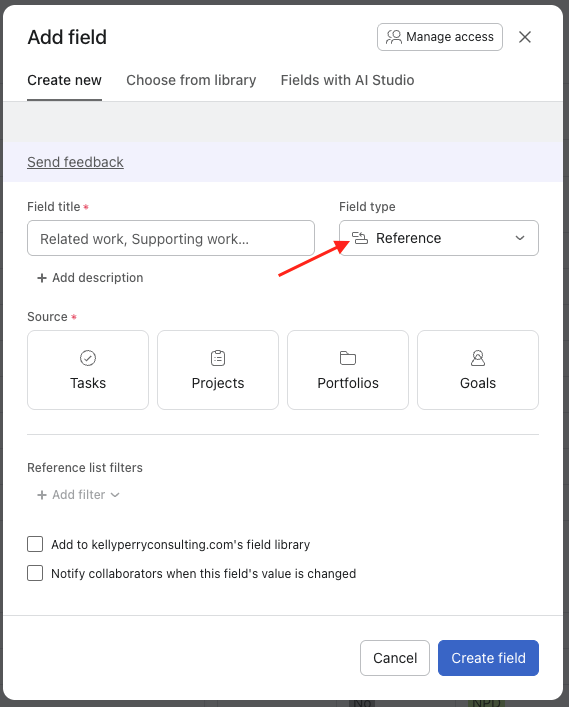
The feature is available to all customers on Starter, Advanced, Enterprise, and Enterprise+ plans. You'll find it as a "Reference" field type when adding custom fields to your projects.
Why This Changes Everything
Reference fields address three fundamental workflow challenges that most teams deal with daily:
1. Reducing Manual Maintenance
Most teams spend surprising amounts of time copying project names, task titles, or goal information into task descriptions. Someone updates the project name, but now it's wrong in seventeen different places. Reference fields create dynamic links that stay current automatically. When the source changes, your reference updates everywhere. Less manual work, fewer errors, and no more chasing down outdated information.
2. Creating Workflow Relationships
Work rarely happens in isolation. Your design task connects to three different product launches. Your content piece supports two campaigns. But without explicit connections, these relationships stay invisible –– people just know them intuitively, or worse, they don't know them at all. Reference fields are different from dependencies and allow you to track relevant interconnected work that may not be explicitly blocking your task.
3. Keeping Context Accessible
How much time does your team spend jumping between projects to gather context? Digging through subtasks? Scrolling through comments to find that one link someone shared three weeks ago? Reference fields surface related work right where you need it. Faster decisions, less jumping around, and everyone can see the bigger picture without hunting for it.
Practical Use Cases
Let me show you where reference fields make an immediate difference:
Use Case #1: Product Launch Coordination
What this solves:
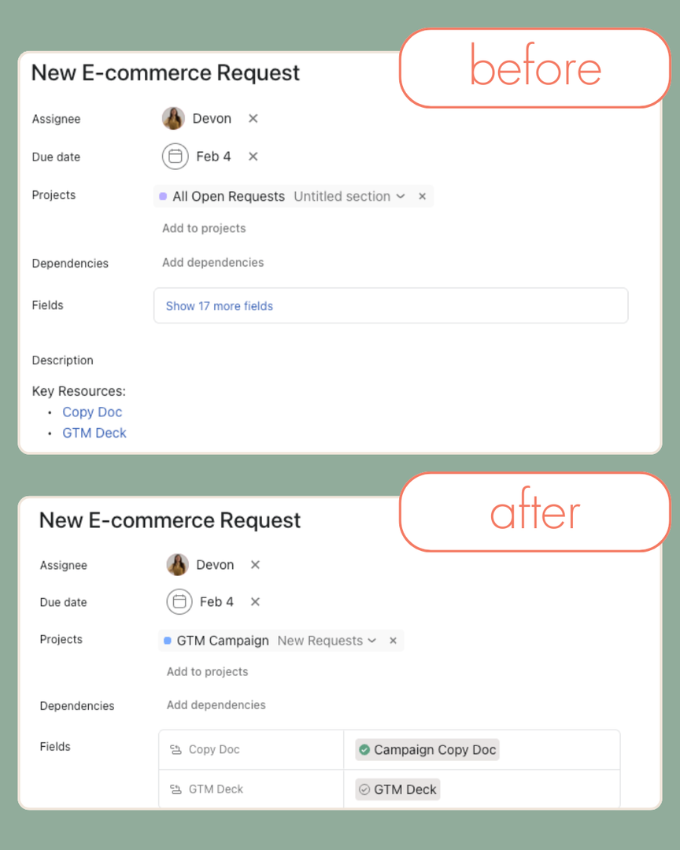
Are you manually updating quick links in task descriptions? Maintaining a "Key Resources" tab that's always slightly out of date? Digging around to find the right reference materials when you need them?
This is the perfect use case that demonstrates why reference fields exist.
Why this is helpful:
First, you get immediate visibility into whether your reference task is complete. No more clicking through to check status—you can see it right in the custom field. Second, the UX clearly signals where the right reference materials are located. Your team knows exactly where to look, and those references stay current as work progresses.
Other relevant applications:
This same pattern works beautifully for campaign and content planning. Connect content pieces to their parent campaigns, link related assets and deliverables, and manage multi-channel initiatives without losing track of what connects to what.
Use Case #2: Client and Project Management
What this solves:
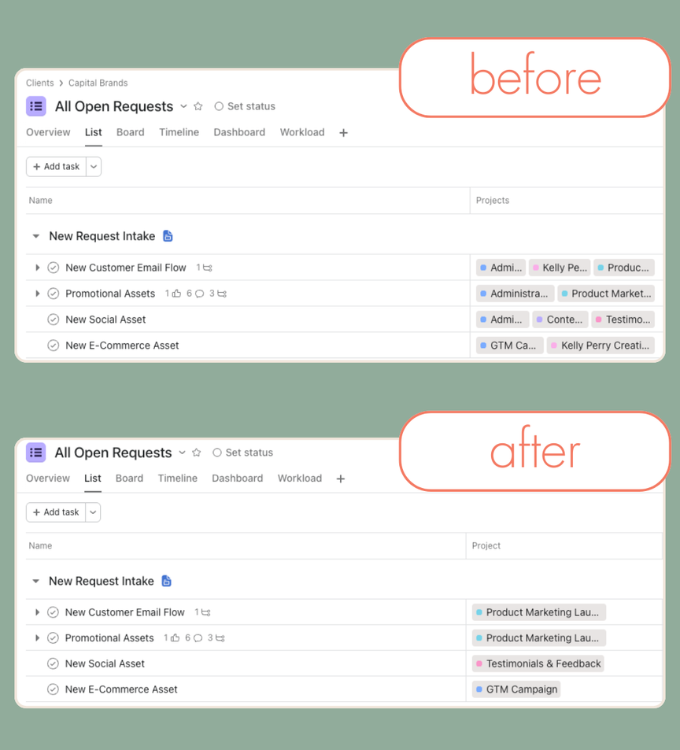
If you can't use Asana's standard project field because you're multihoming tasks across several projects, you've probably resorted to copying project names into task titles or description fields. It works, but it's clunky, and those text references don't give you any useful information about the actual project.
Why this is helpful:
You can cleanly link the primary project or campaign a task references without cluttering your task organization. The reference stays live, so you can see project status, jump directly to it when needed, and maintain that connection without manual updates.
Other relevant applications:
Resource and portfolio management scenarios benefit from this same approach. Connect individual tasks to strategic goals, link projects to their governing portfolios, and track task-level work against high-level objectives. The connections exist in your team's heads already—reference fields just make them visible and actionable.
How to Implement Reference Fields Effectively
Start with Clear Use Cases
Don't implement reference fields everywhere at once. Instead:
Identify where you're currently duplicating information (like typing project names into text fields repeatedly)
Look for workflows where people frequently ask "which project is this for?" or "where's the main campaign task?"
Map relationships that actually matter to your team's work—not every possible connection, just the important ones
Set Team Expectations
Your team needs to understand when to use reference fields versus other connection methods:
Reference fields are for surfacing related work that provides context or tracks relationships
Dependencies are for work that must happen in a specific sequence
Subtasks are for breaking down work into smaller pieces within the same task
Establish who updates reference fields and when. If they're optional, they'll become inconsistent. If they're required but unclear, they'll become annoying. Find the middle ground that works for your workflows.
Decide on naming conventions early. Will you reference the main project task or the project itself? How will you handle situations where multiple references make sense?
Pro tip: Use the bulk-actions bar on your project view to quickly update these reference fields across your project. You can even use Script Actions to populate this field when new tasks are added to a project.
Current Limitations & Workarounds
Reference fields are powerful, but they're still new. Here's what's not available yet (but is on Asana's roadmap):
Rules support - You can't trigger automation based on reference field changes yet
Advanced search and filtering - Searching by reference fields is limited
Group-by functionality - You can't group tasks by their reference fields
Forms integration - Can't populate reference fields through forms
Asana AI integration - AI features don't work with reference fields yet
These limitations mean you'll need to think carefully about where reference fields add the most value right now. Focus on use cases where the core linking functionality solves your problem, rather than workflows that need automation or advanced reporting.
Getting Started: Your First Reference Field
Like with all new process rollouts, implementing reference fields will work best when you can make quick wins by addressing real pain points. Pick the one workflow where your team is already losing time on manual inputs, implement a reference field, and build from there.
Here's a simple implementation path:
Choose one use case causing the most pain - Maybe it's tracking which client project tasks belong to, or connecting content to campaigns
Create one reference field in the custom field library - You can even make it a private field while you’re testing it out.
Add it to 2-3 projects as a pilot - Start small enough to learn without overwhelming your team
Train the team on when and how to use it - Show them the specific scenarios where it helps
Iterate based on what works - After a few weeks, ask what's useful and what's not
Before you start, ask yourself:
What information are we manually updating across tasks or projects? How often do we have to re-do this work?
Where do we lose track of connections between different pieces of work?
What would make our team's work more visible to each other?
Ready to level up? My Asana 201: Beyond The Basics session includes hands-on practice with advanced custom field strategies, or reach out to explore how I can help you implement reference fields in your workflows.