
Asana Task Types: Use Cases & Why They're Worth Setting Up
If you've been in Asana for a while, you've probably gotten pretty comfortable using sections and custom fields to organize your work. They're the bread and butter of most project setups, and they work well! However, there's a feature that doesn't always get the attention it deserves that can genuinely level up how your team works: custom Task Types.
This post covers what Task Types are, how they compare to the section-based approach you might already be using, how they plug into your automation stack, and a handful of practical use cases across different team types.
Available on: Asana Starter and above (Project admin or Editor permissions required)
What Are Task Types?
Not all work can be measured by a binary complete/incomplete status. Custom task types allow you to standardize tasks and better reflect your unique workflows in Asana. They help teams create more consistent workflows by giving more control over which status options are available for certain tasks.
Asana comes with 3 default Task Types: Task, Milestone, and Approval. But did you know you could make your own?
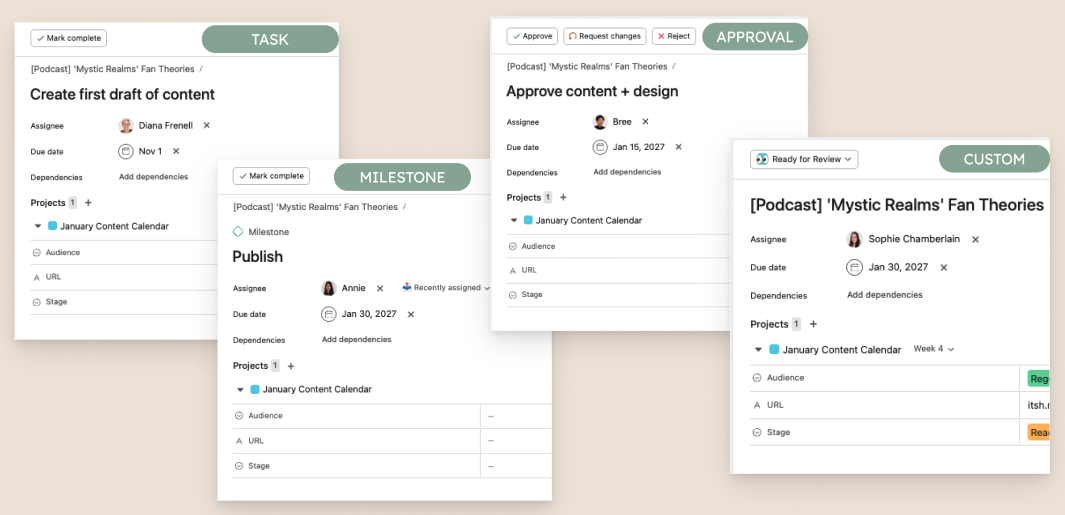
Asana comes with 3 pre-built Task Types: Task, Milestone, and Approval
Think of Task Types as a way to give specific categories of work their own identity inside a project. Instead of every task being a generic to-do item that moves through sections, a custom Task Type like "Work Request" or "Bug Report" or "Creative Brief" carries its own set of custom statuses, its own visual indicator, and its own completion logic, all baked in.
You can use a custom task type to standardize tasks so they better suit your workflow, define custom task status options, and control how task status changes affect task completion.
Task Types live in the task templates option in the Customization Panel, and you'll need Project admin or Editor permissions to set them up. Once created, you can share them with others in your organization through access control settings, so you don't have to rebuild the same type in every project from scratch.

Setting up a new Task Type in Asana — name it, then define its Active and Done status options.
> Pro tip: Tasks can only have one task type. If you convert a task to a new type, it replaces the previous one. Plan your types thoughtfully before rolling them out across a project.
Task Types vs. Sections: What's the Difference?
Sections are great for organizing tasks spatially. They give you a visual lane structure for things like New Requests, In Progress, and Complete. The issue is that sections and task status are essentially the same thing managed in two different places. When someone moves a task to a new section, you often need a rule to update the status field to match, or vice versa. That not only creates redundancy, but it also creates a fragile setup that breaks if sections get renamed, reordered, or deleted.
Task Types solve this by attaching status directly to the task itself rather than its location in the project. Tasks maintain their custom status even when multi-homed into another project, so the same custom task status options still appear in the task details even when viewing the task outside of its original project. That's a meaningful difference if your team regularly pulls tasks into multiple projects. Pair this with a custom grouping and your problem is solved without any rules upkeep.

Filtering by a custom task status works the same whether a task lives in its home project or was multi-homed elsewhere.
How Task Types Simplify Your Automation Stack
Say you have an intake workflow where tasks come in through a form, get triaged, move through review, and eventually close out. Without Task Types, you'd typically build a branching rule that looks for status changes and moves tasks to the corresponding section: if status is "Not started," move to New Requests; if status is "In progress," move to In Progress; if status is "Complete," move to Complete. And so on. The rule is basic but brittle.
With a Task Type, you reduce that entire branching rule down to a single action: when a task is added to the project, set the task type to "Work Request." From there, the task's own status drives the view. One rule, one branch.
You can use custom task type status changes as triggers or conditions when building rules, much like you might use a custom field status or an approval status change.

Custom task type statuses can be used as triggers and conditions in Rules, collapsing multi-step branching logic into a single rule.
Use Cases by Team
Task Types can be used across many different workflows, let’s look at a few real world examples.
Marketing and Creative Teams: Work Requests
This is probably one of the most common use cases. When creative and marketing teams manage incoming requests alongside their own project work, having a "Work Request" task type separates intake tasks from deliverable tasks in the same project. You can define statuses like Submitted, In Review, Revision Needed, Approved, and Complete, and assign colors to each so the status is immediately visible at a glance. Pair this with a form and a single rule to convert new form submissions to the Work Request type, and your intake workflow basically runs itself.
You can also set your custom task type as the default for your project, which changes the "+ Add task" button to "+ Add Work Request." It's a small thing that goes a long way toward keeping your team's input consistent.
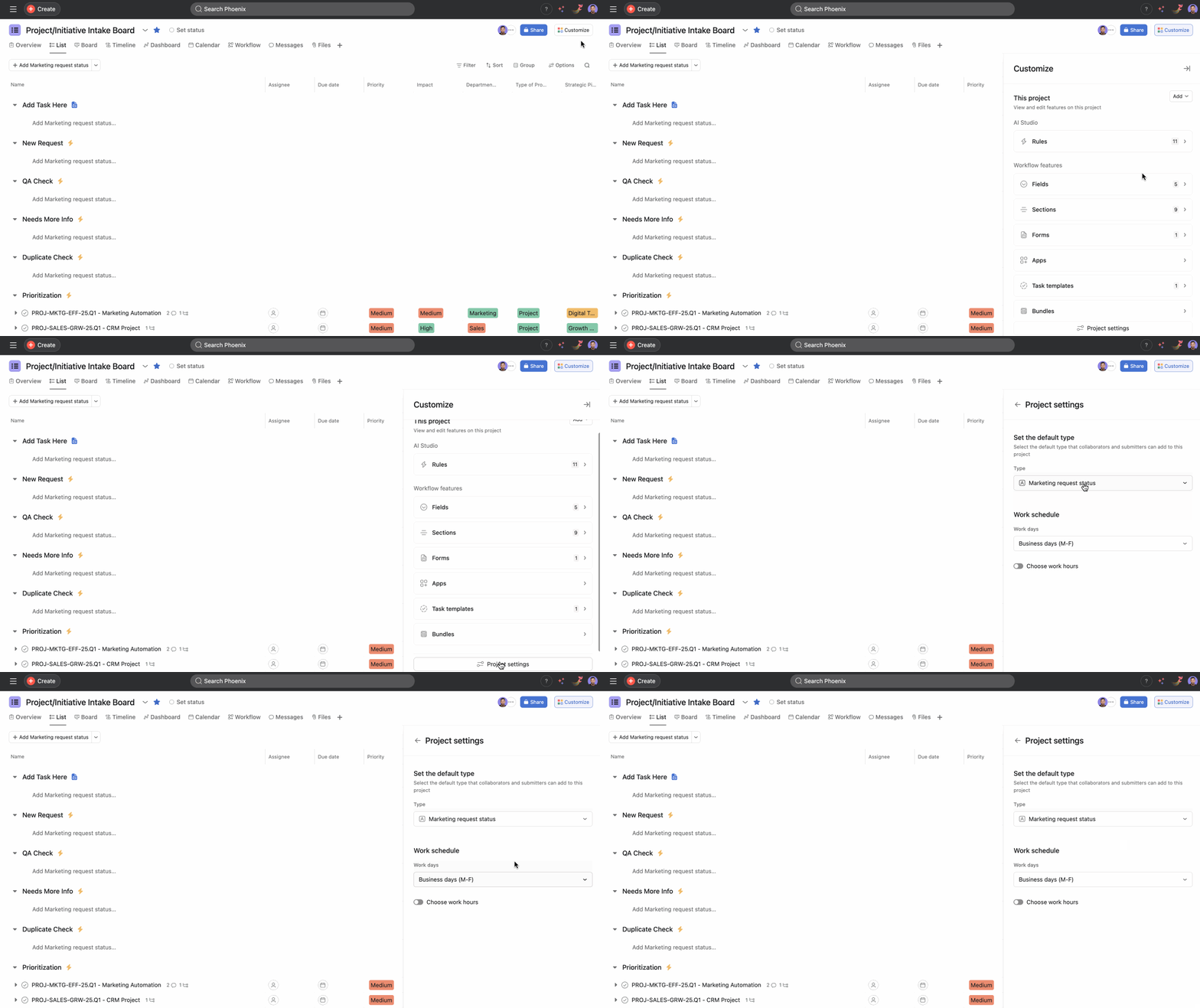
Set a Task Type as the project default and the "+ Add task" button updates automatically. In this example, it updates to "+ Add Marketing request."
Engineering and Product Teams: Bug Reports and Feature Requests
A "Bug Report" task type can carry statuses like Reported, Triaged, In Development, In QA, and Resolved. These are statuses that mean something specific to an engineering workflow and don't map cleanly onto generic task stages. The same goes for Feature Requests or Spec Reviews, where the lifecycle of the task is distinct enough to warrant its own status logic. The ability to filter and group by task type also means engineers and PMs can quickly isolate just the bugs or just the feature work without wading through everything else in the project.
IT Teams: Service Tickets
IT help desk workflows typically have very defined stages: Submitted, Assigned, In Progress, Pending Info, Resolved, Closed. A "Service Ticket" task type with those statuses makes the pipeline crystal clear for whoever is triaging, and rules can fire based on status changes to automatically reassign, notify, or close out tickets. You can sort, group, and filter by custom task type and status, which means IT leads can get an immediate read on what's active, what's stalled, and what's done without building a separate report.
Operations Teams: Process Tracking
For ops teams running recurring processes (vendor reviews, onboarding checklists, compliance audits), a custom Task Type keeps the workflow stages explicit and consistent across every instance of that process. When combined with project templates, you can ensure every new process kicks off with the right task type already applied and the right statuses ready to go.
Ready to Try It?
Task Types are one of those features that feels like a small configuration change until you actually set one up and realize how much cleaner your project feels. If you've been managing intake workflows, bug queues, or recurring process tasks with a patchwork of sections and branching rules, this is worth experimenting with.
Already exploring Task Types but hit a roadblock? Join me for my free monthly Asana Office Hours! Bring your questions, and I'll help troubleshoot your setup and work through practical next steps you can apply to your workflow.